10 Chrome managed-profile policy baseline
Chrome is where the session cookies live, so on any machine that is not fully managed the browser is the endpoint that matters. This baseline forces work browsing into a managed profile (sign-in restricted to your domains), forces Enhanced Safe Browsing, password-reuse warnings, relaunch for updates, makes third-party cookies session-only, removes the WebUSB/Web Serial surface and native messaging (bar an allowlist), and moves extensions from allow-by-default to allowlist-only with per-extension permission and host limits. Chrome Enterprise Core is free, so none of this is licence-gated.
Documentation: Set Chrome policies for users or browsers ↗ · Managing Extensions in Your Enterprise ↗
Caveats
- Google’s DBSC account-binding is Windows-only as of 2026-071
- RestoreOnStartup restores the previous session’s tabs with cookies2
- RestrictSigninToPattern gates only the browser’s profile account3
- These are user/profile-scoped policies, not device-scoped4
- AI-agent browsing can also be isolated in a separate profile without sync5
Setup steps
- open ↗
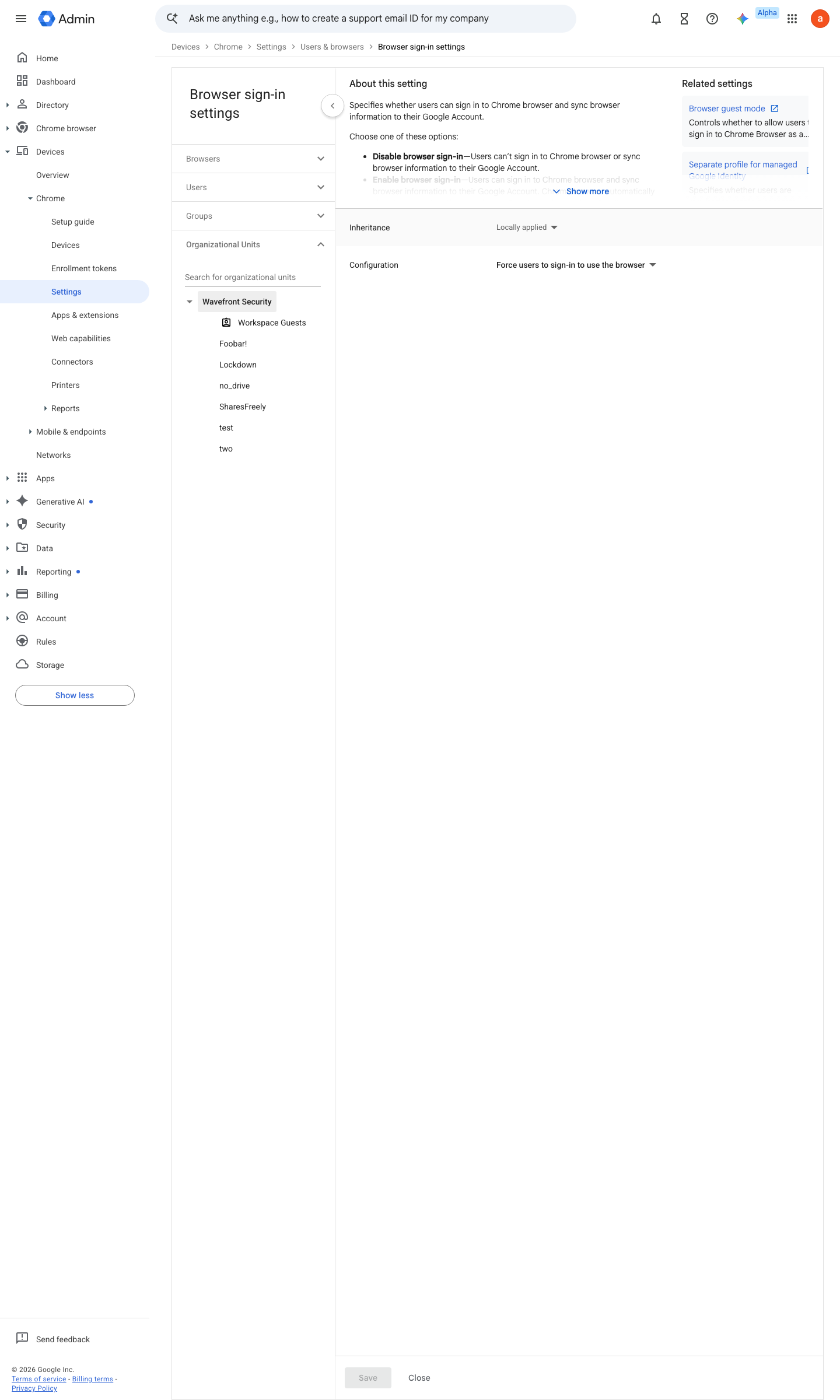
https://admin.google.com/ac/chrome/settings/user/details/browser_signin_category_item · captured 2026-07-15
Devices › Chrome › Settings › Users & browsers › Browser sign-in settings- Browser sign-in settings
Force users to sign in to use the browser
Force users to sign in to Chrome browser (user policies only) ↗
- open ↗
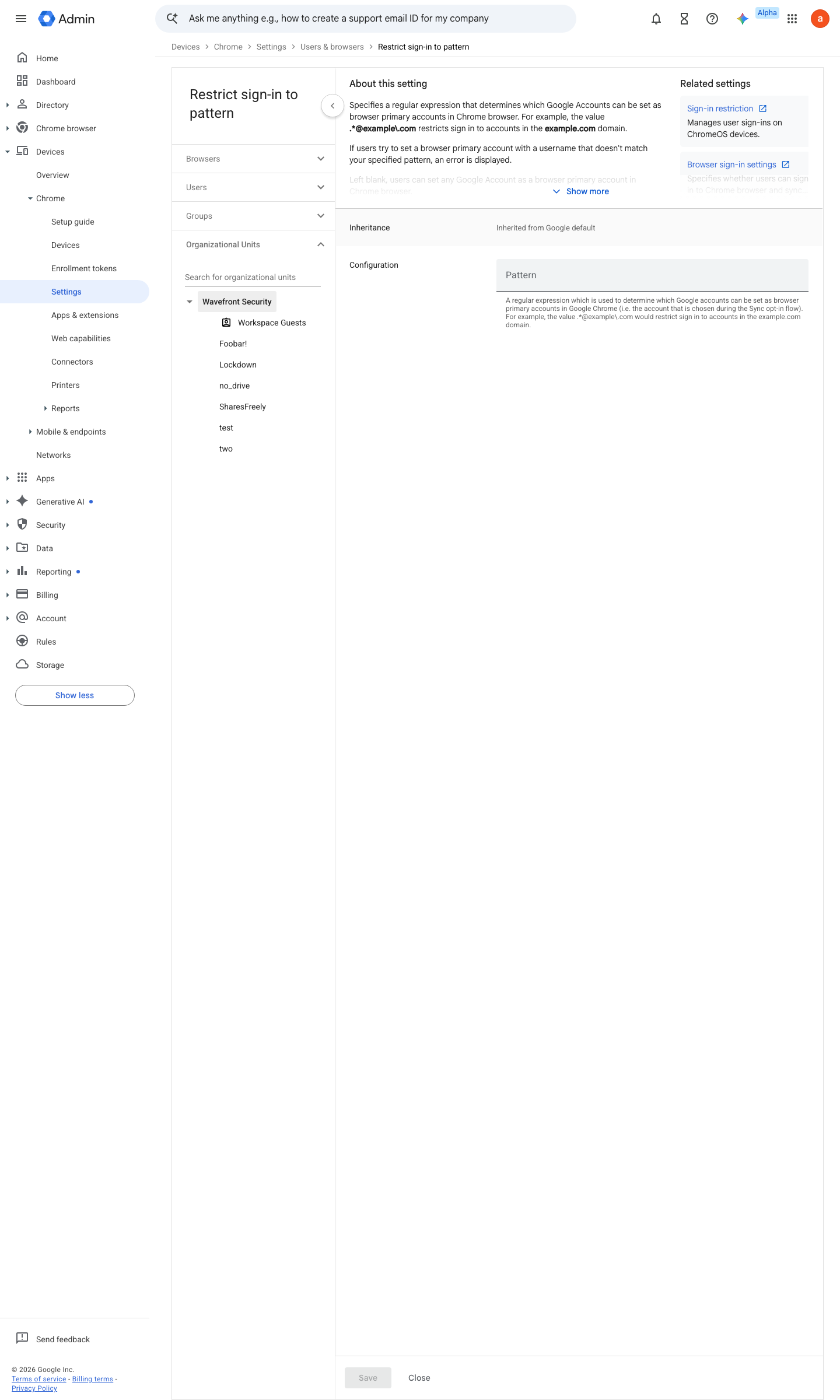
https://admin.google.com/ac/chrome/settings/user/details/restrict_signin_to_pattern_category_item · captured 2026-07-15
Devices › Chrome › Settings › Users & browsers › Restrict sign-in to pattern- Restrict sign-in to pattern
.*@<your-domain> (one pattern per Workspace domain)
Force users to sign in to Chrome browser (user policies only) ↗
- open ↗
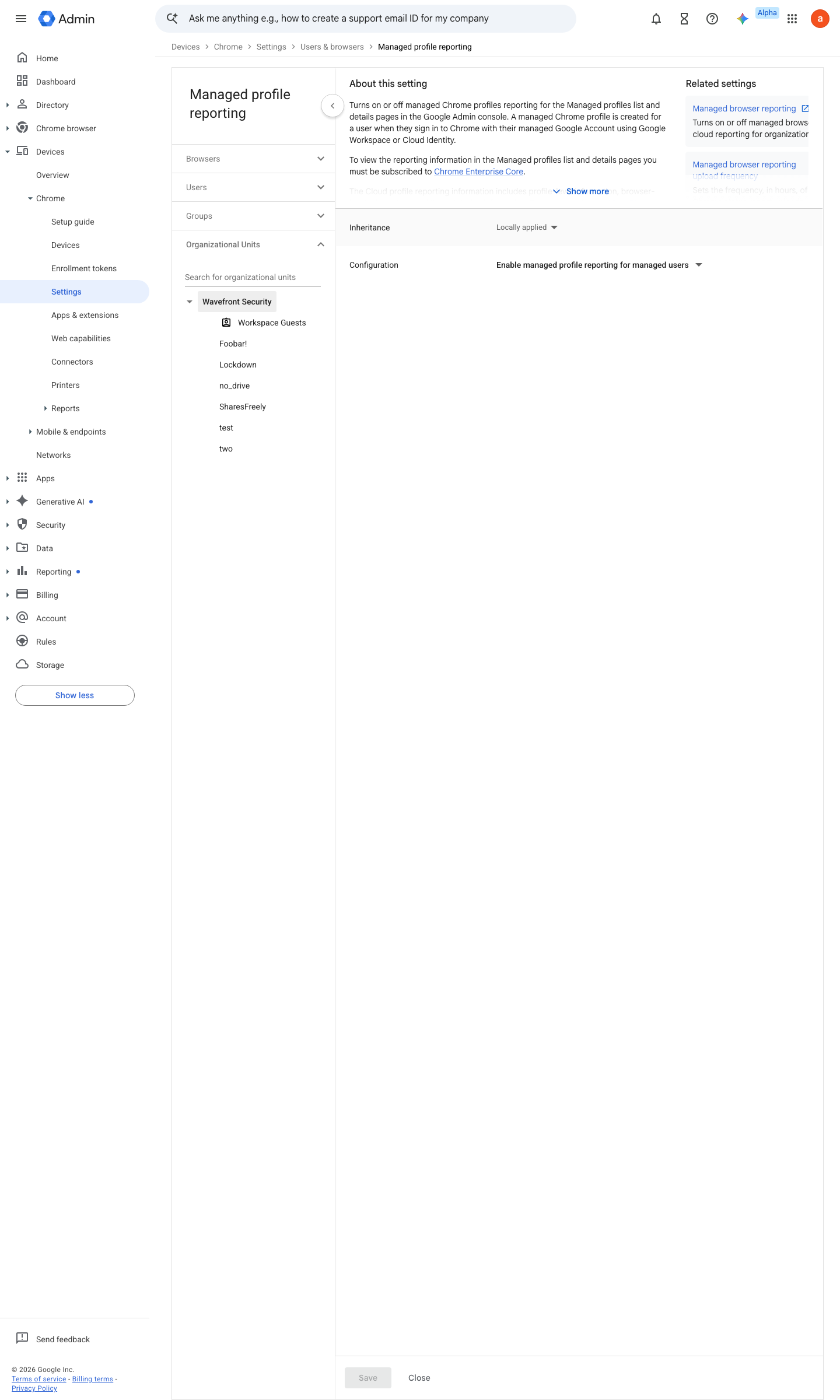
https://admin.google.com/ac/chrome/settings/user/details/cloud_profile_reporting · captured 2026-07-15
Devices › Chrome › Settings › Users & browsers › Managed profile reporting- Managed profile reporting
Enabled
- open ↗
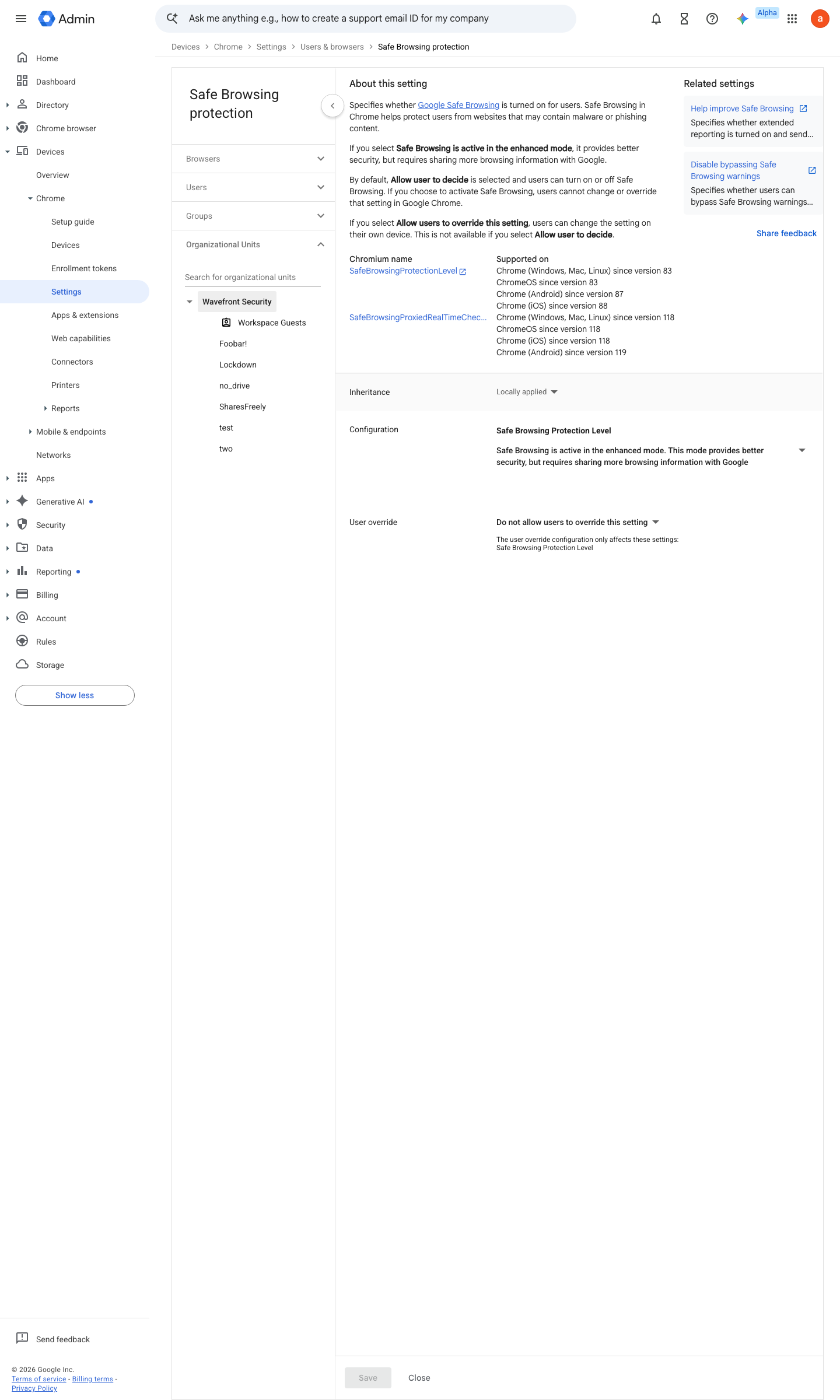
https://admin.google.com/ac/chrome/settings/user/details/safe_browsing_protection_level_category_item?f=SEARCH.safe%2520browsing · captured 2026-07-15
Devices › Chrome › Settings › Users & browsers › Safe Browsing Protection- Safe Browsing Protection
Safe Browsing is active in the enhanced mode (forced — users cannot override)
- open ↗
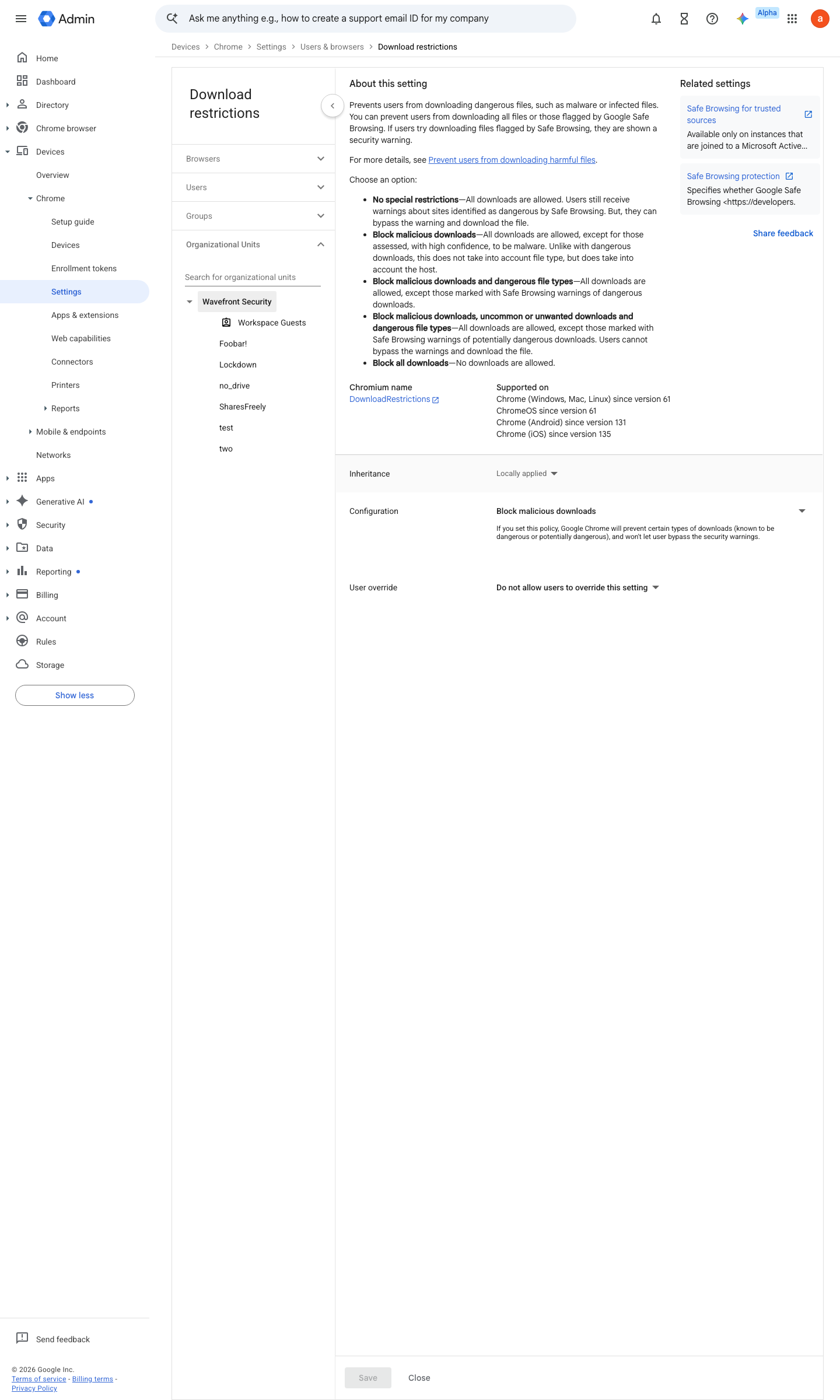
https://admin.google.com/ac/chrome/settings/user/details/download_restrictions?f=SEARCH.download · captured 2026-07-15
Devices › Chrome › Settings › Users & browsers › Download restrictions- Download restrictions
Block malicious downloads, uncommon or unwanted downloads and dangerous file types
- open ↗
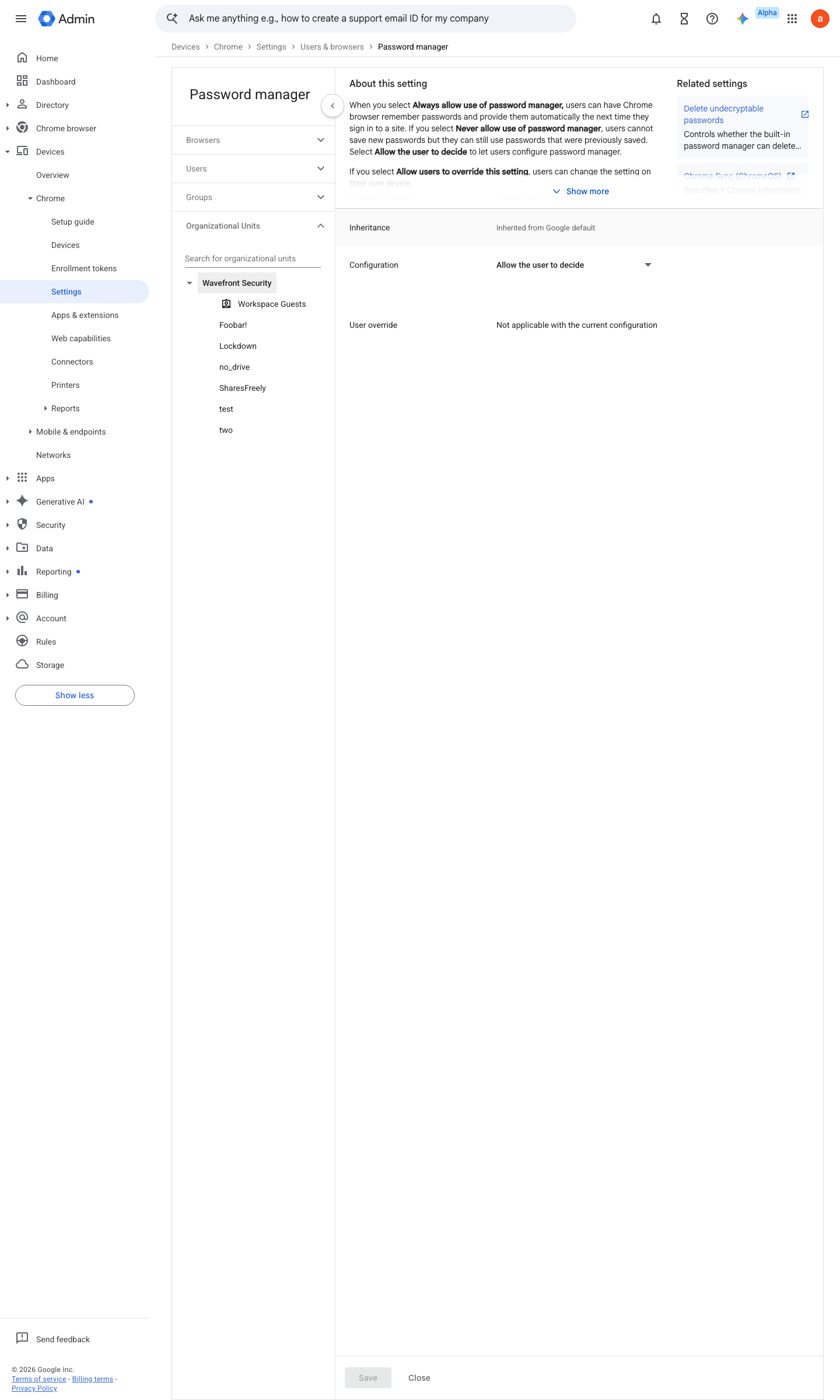
https://admin.google.com/ac/chrome/settings/user/details/password_manager?f=SEARCH.password%2520protection · captured 2026-07-15
Devices › Chrome › Settings › Users & browsers › Password manager- Password manager
Never allow use of password manager
- open ↗
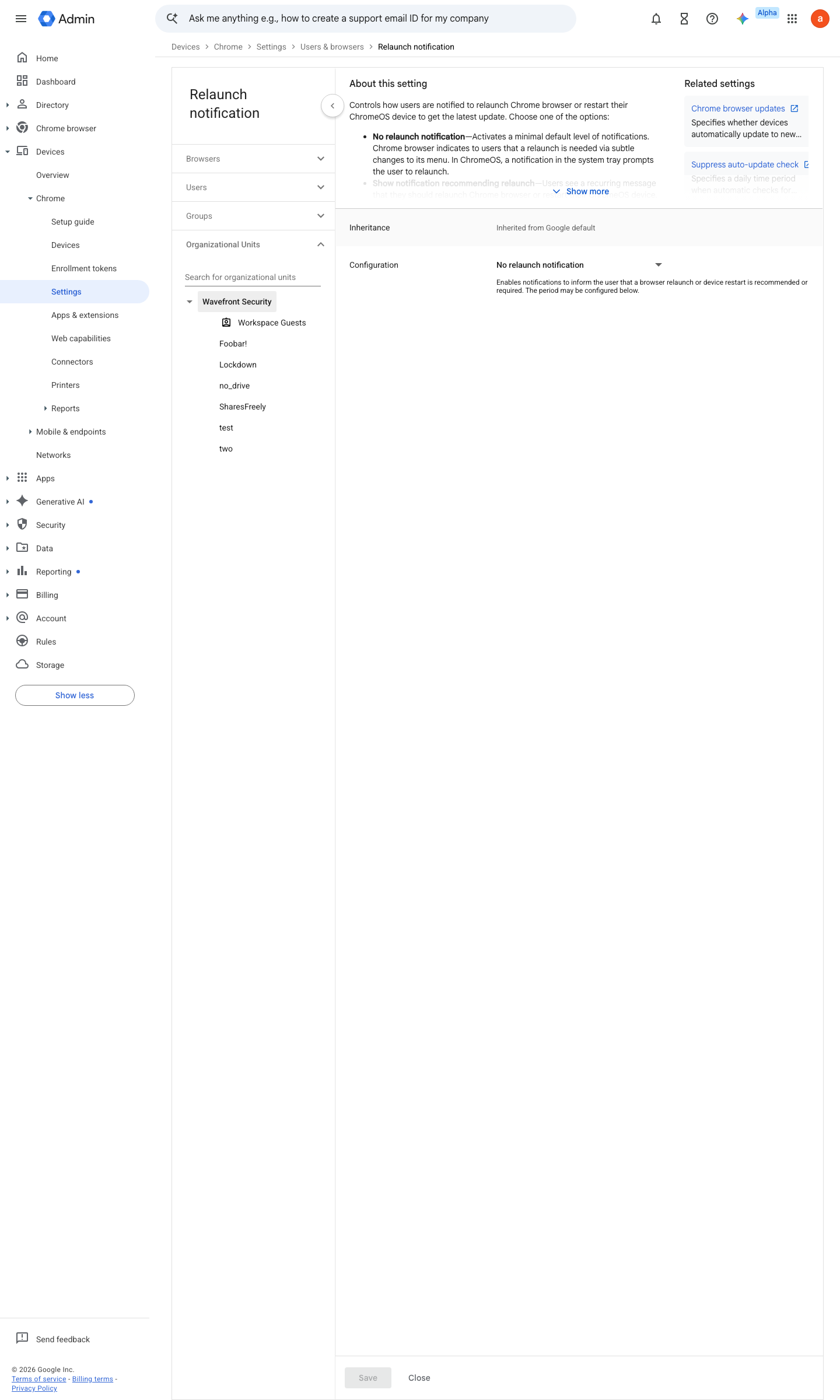
https://admin.google.com/ac/chrome/settings/user/details/relaunch_notification_with_duration?f=SEARCH.relaunch · captured 2026-07-15
Devices › Chrome › Settings › Users & browsers › Relaunch notification- Relaunch notification
Force relaunch after a period- Time period
48 hours
- open ↗
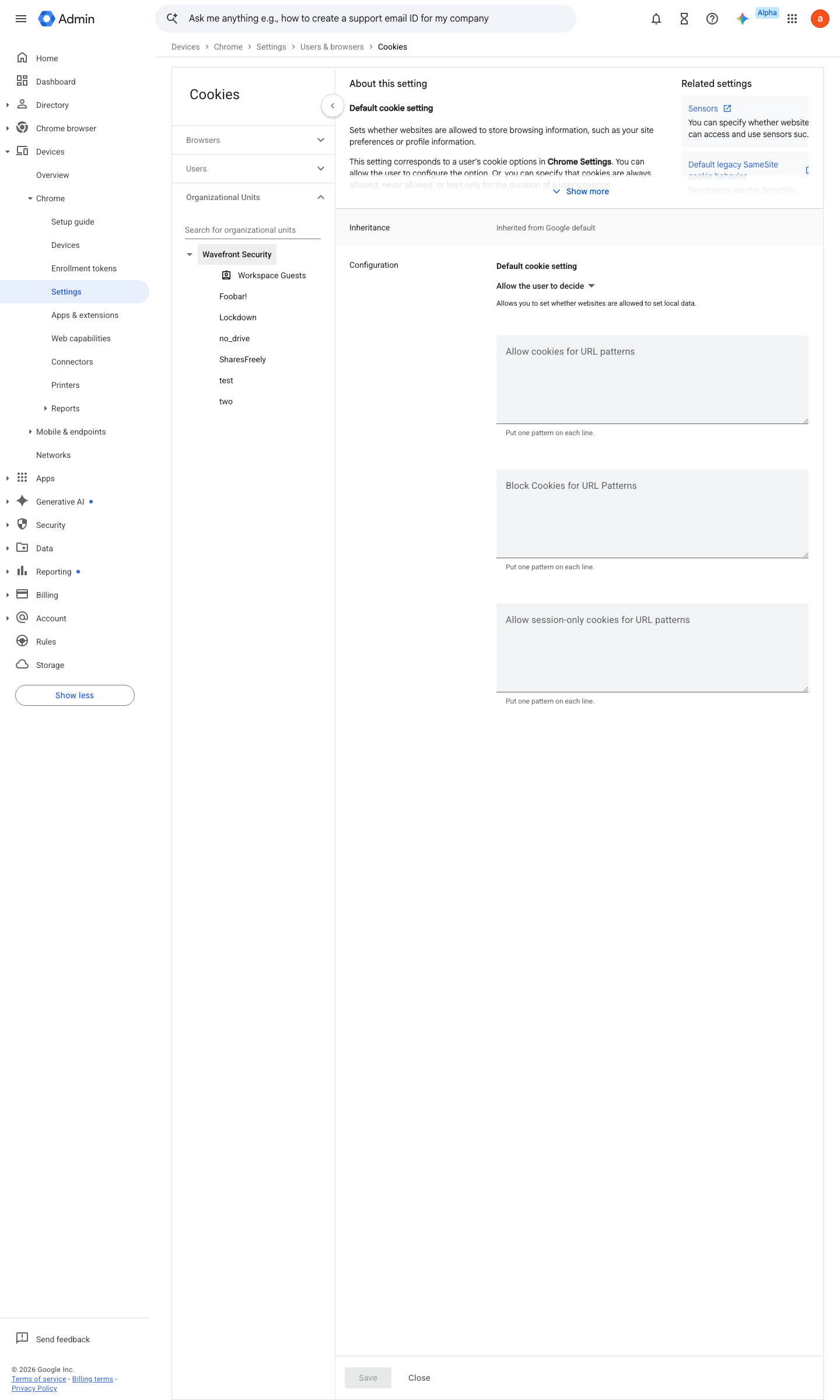
https://admin.google.com/ac/chrome/settings/user/details/cookies?f=SEARCH.cookies · captured 2026-07-15
Devices › Chrome › Settings › Users & browsers › Cookies- Default cookie setting
Keep cookies for the duration of the session- Allow cookies for URL patterns
your corp domains, accounts.google.com, mail.google.com, your Slack (or, inverted, session-only for a named list). Do NOT overlap patterns across the allow/block/session-only lists
- open ↗
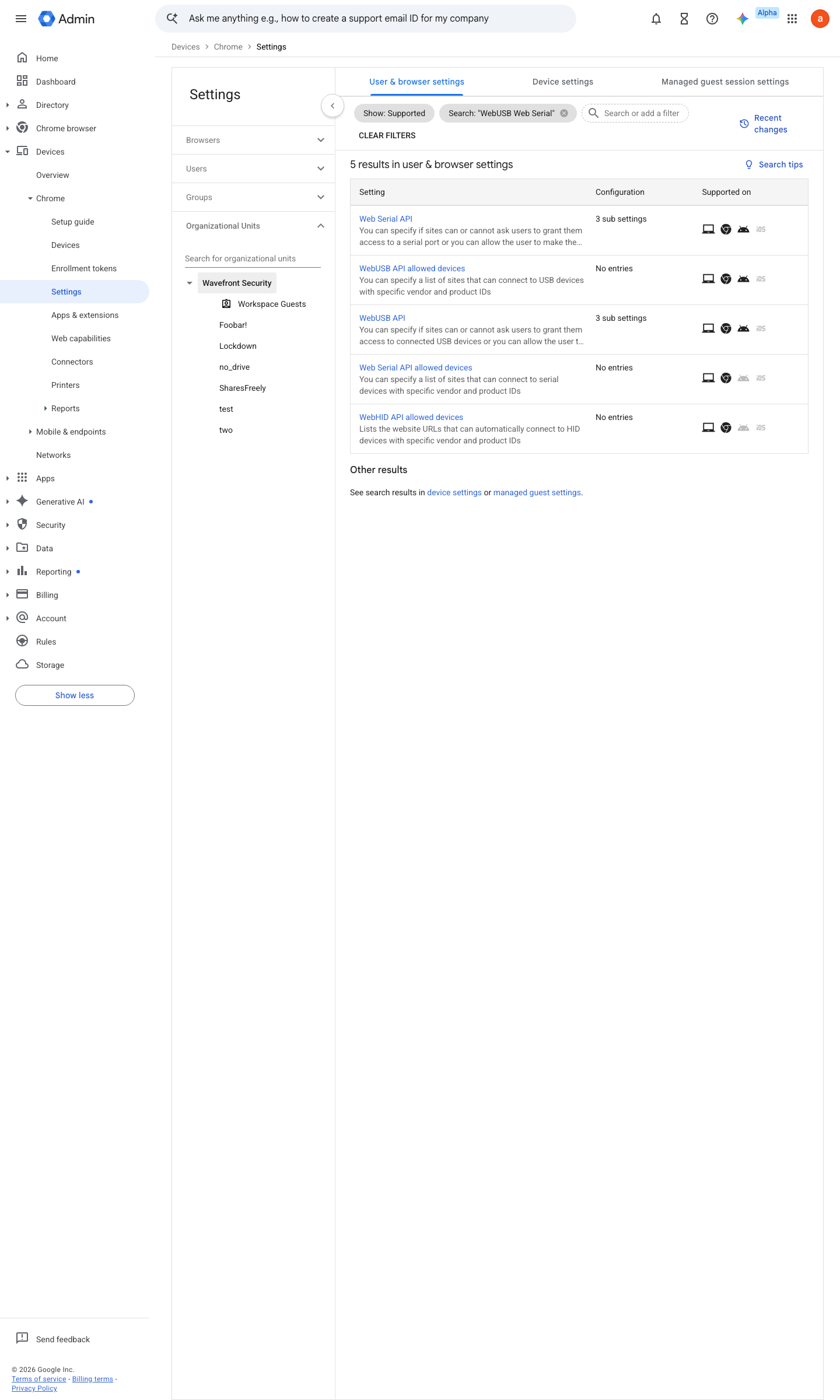
https://admin.google.com/ac/chrome/settings/user?f=SEARCH.WebUSB%2520Web%2520Serial · captured 2026-07-15
Devices › Chrome › Settings › Users & browsers- WebUSB
Do not allow sites to request access- Web Serial API
Do not allow sites to request access
- open ↗
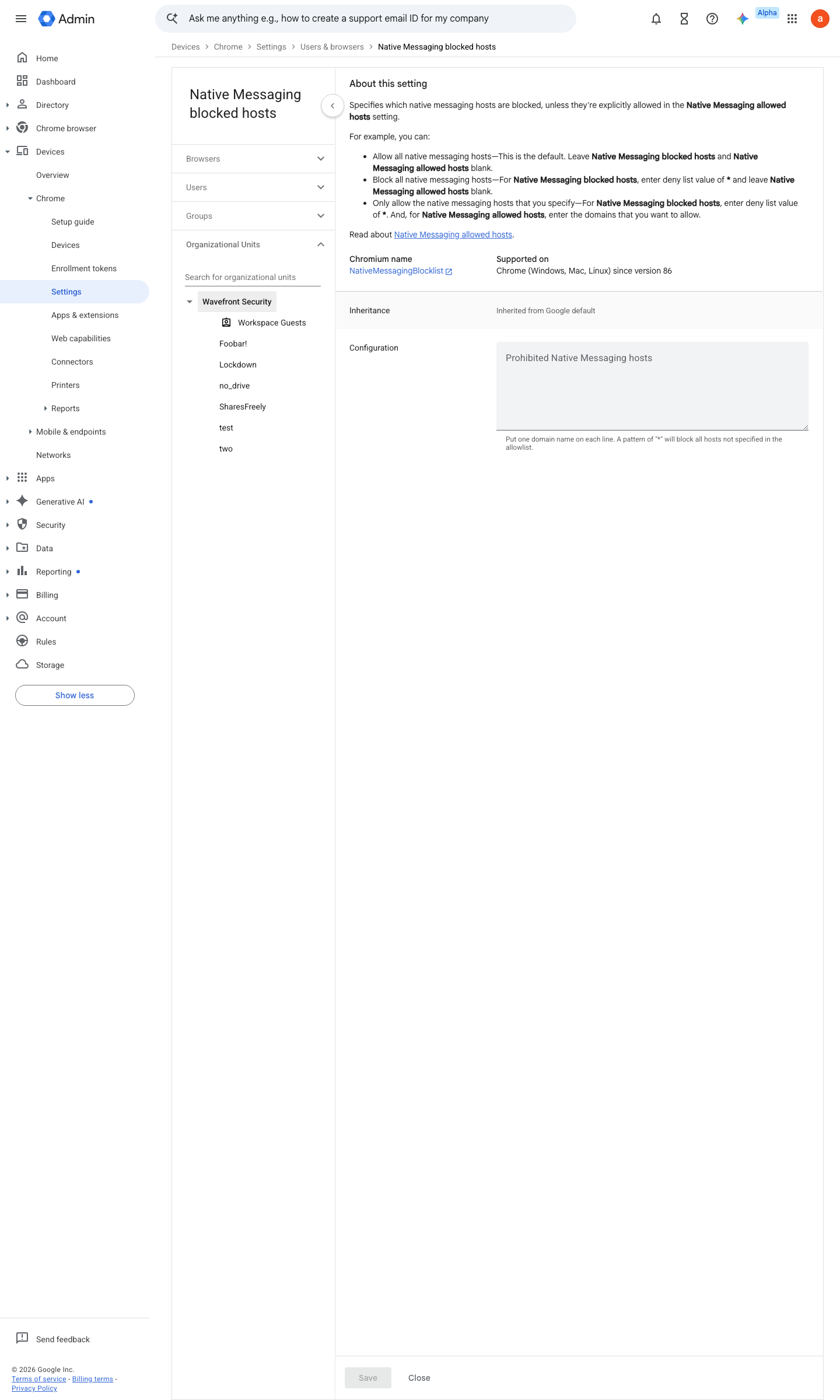
https://admin.google.com/ac/chrome/settings/user/details/native_messaging_blocked?f=SEARCH.native%2520messaging · captured 2026-07-15
Devices › Chrome › Settings › Users & browsers › Native messaging blocked- Native messaging blocked hosts
*
- open ↗
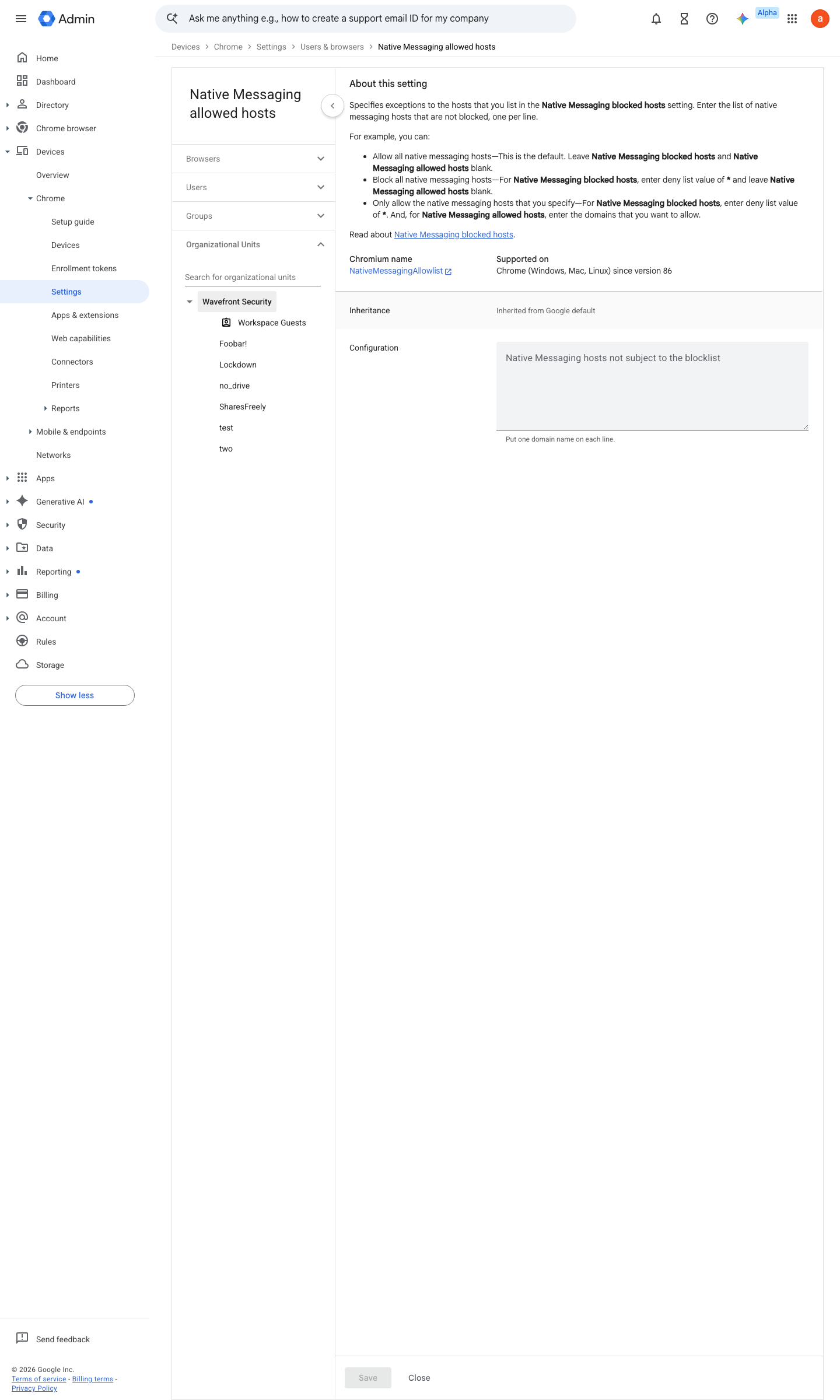
https://admin.google.com/ac/chrome/settings/user/details/native_messaging_allowed?f=SEARCH.native%2520messaging · captured 2026-07-15
Devices › Chrome › Settings › Users & browsers › Native messaging allowed- Native messaging allowed hosts
e.g. com.1password.1password (1Password), com.8bit.bitwarden (Bitwarden)
- open ↗
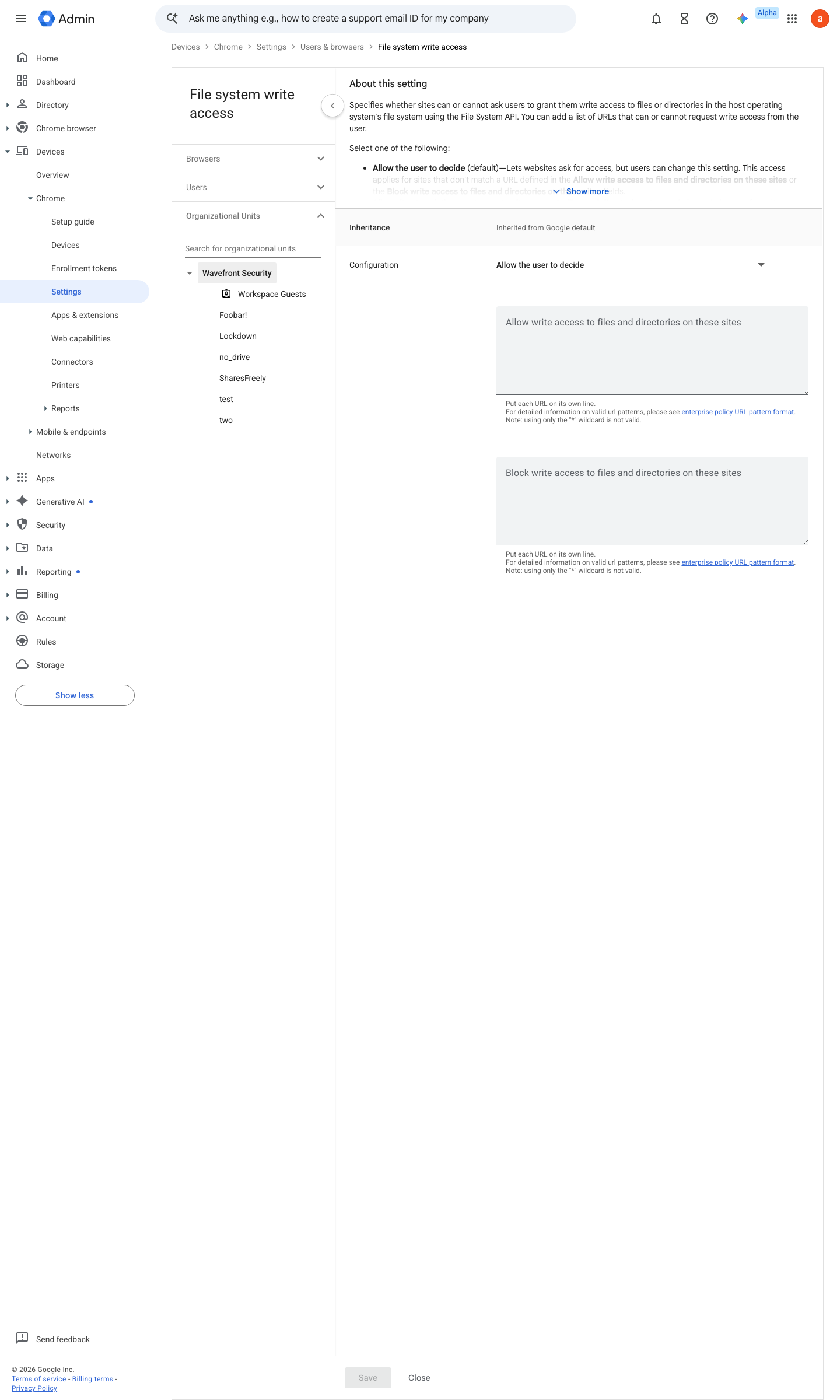
https://admin.google.com/ac/chrome/settings/user/details/default_file_system_write_guard_setting_category_item?f=SEARCH.default%2520file%2520system · captured 2026-07-15
Devices › Chrome › Settings › Users & browsers › File system write access- File system write access
Do not allow sites to request write access
- open ↗
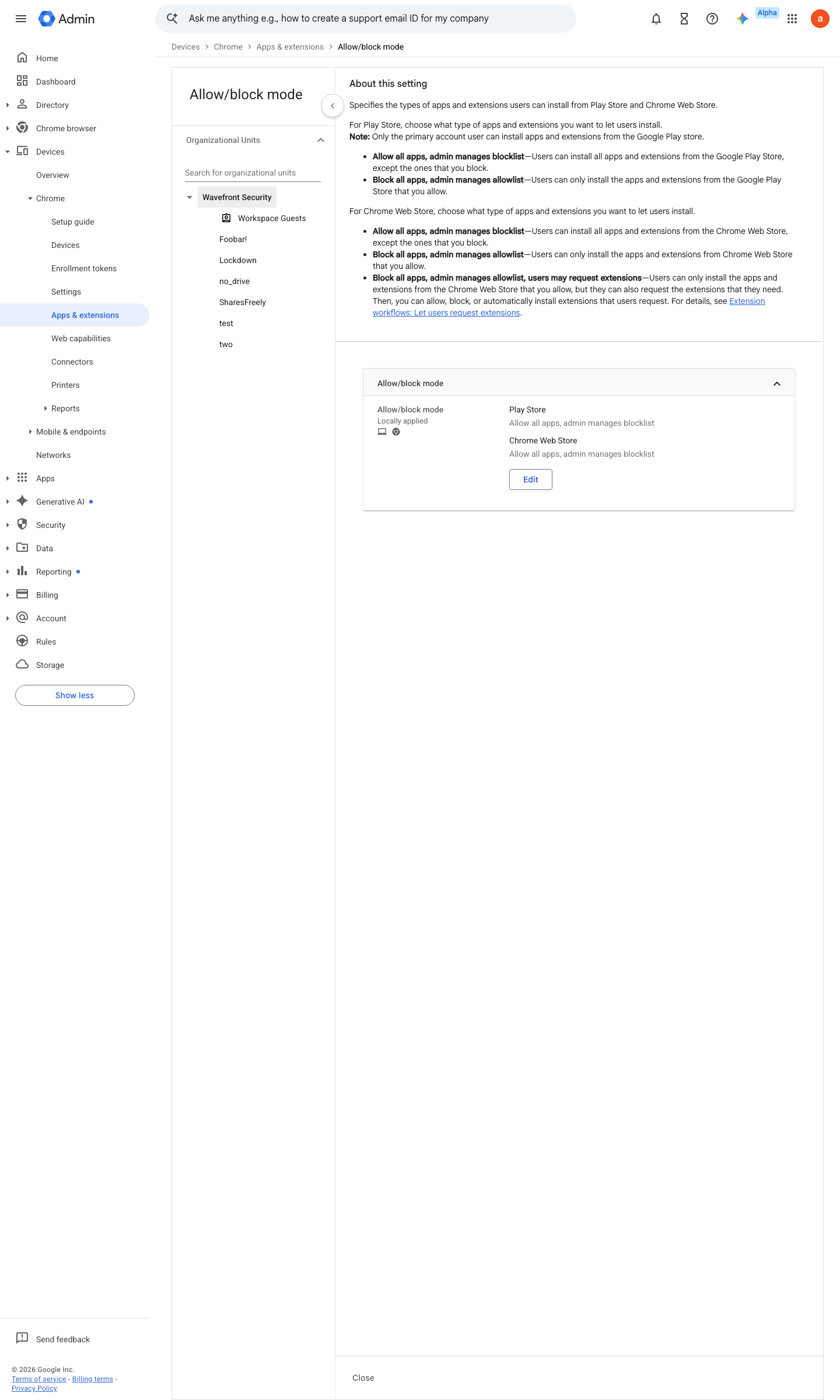
https://admin.google.com/ac/chrome/apps/user/settings/details/allow_block_mode_setting · captured 2026-07-15
Devices › Chrome › Apps & extensions › Users & browsers › Settings › Allow/block modeAllow/block mode (Play Store and Chrome Web Store) = Block all apps, admin manages allowlist
- open ↗
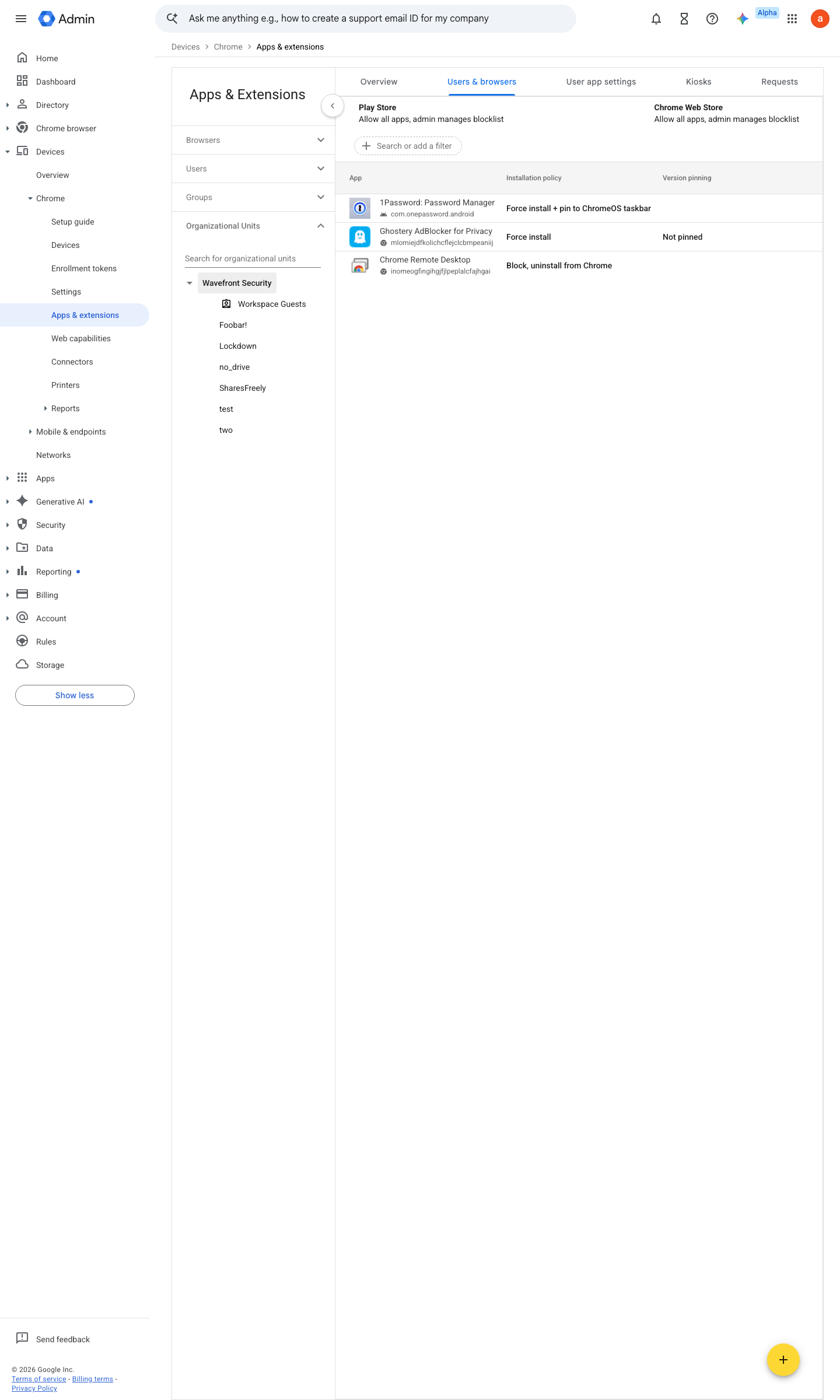
https://admin.google.com/ac/chrome/apps/user · captured 2026-07-15
Devices › Chrome › Apps & extensions › Users & browsersForce install: password manager, content blocker; allowlisted: the approved optional set
- open ↗
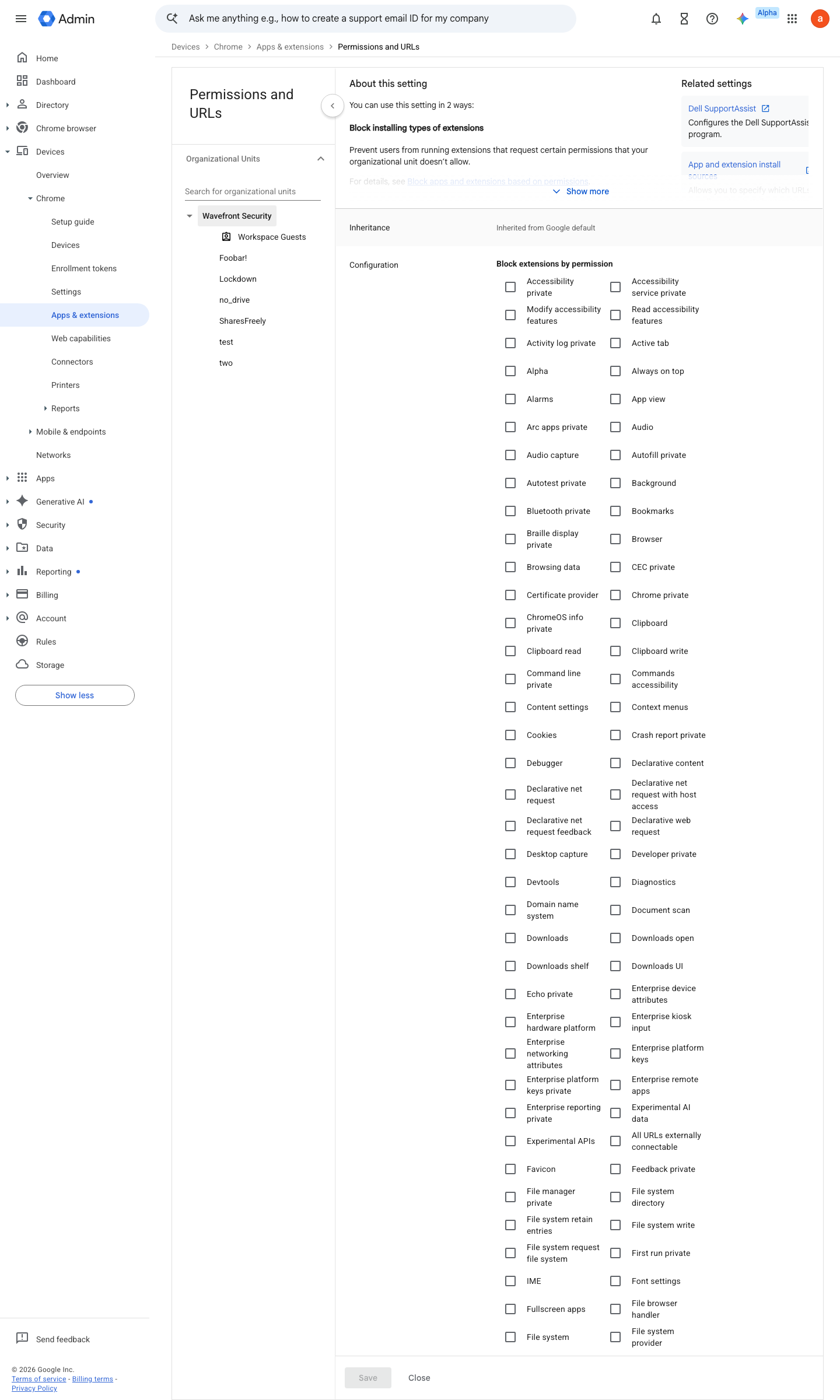
https://admin.google.com/ac/chrome/apps/user/settings/details/block_extensions_by_permission · captured 2026-07-15
Devices › Chrome › Apps & extensions › Users & browsers › Settings › Block extensions by permissionBlocked permissions (e.g. accessibilityFeatures.modify); ExtensionSettings JSON per extension: runtime_blocked_hosts; pin versions with a cooldown before updates roll
Set app and extension policies ↗ Prevent Chrome extensions from altering webpages ↗
Ongoing maintenance
- automatable: AI agent On every Chrome major release: read the enterprise release notes and adjust policies that changed meaning or default.
How to verify
On a managed profile, open chrome://policy and confirm the baseline policies are present with status OK and the expected source (Cloud user policy) — no admin access needed.
Confirm the browser is actually current — the forced-update policy only matters if versions move.
chrome://version shows a release ≤ 2 versions behind stable
Further screens
Screen 1 of 2: Devices > Chrome > Settings > Users & browsers
open ↗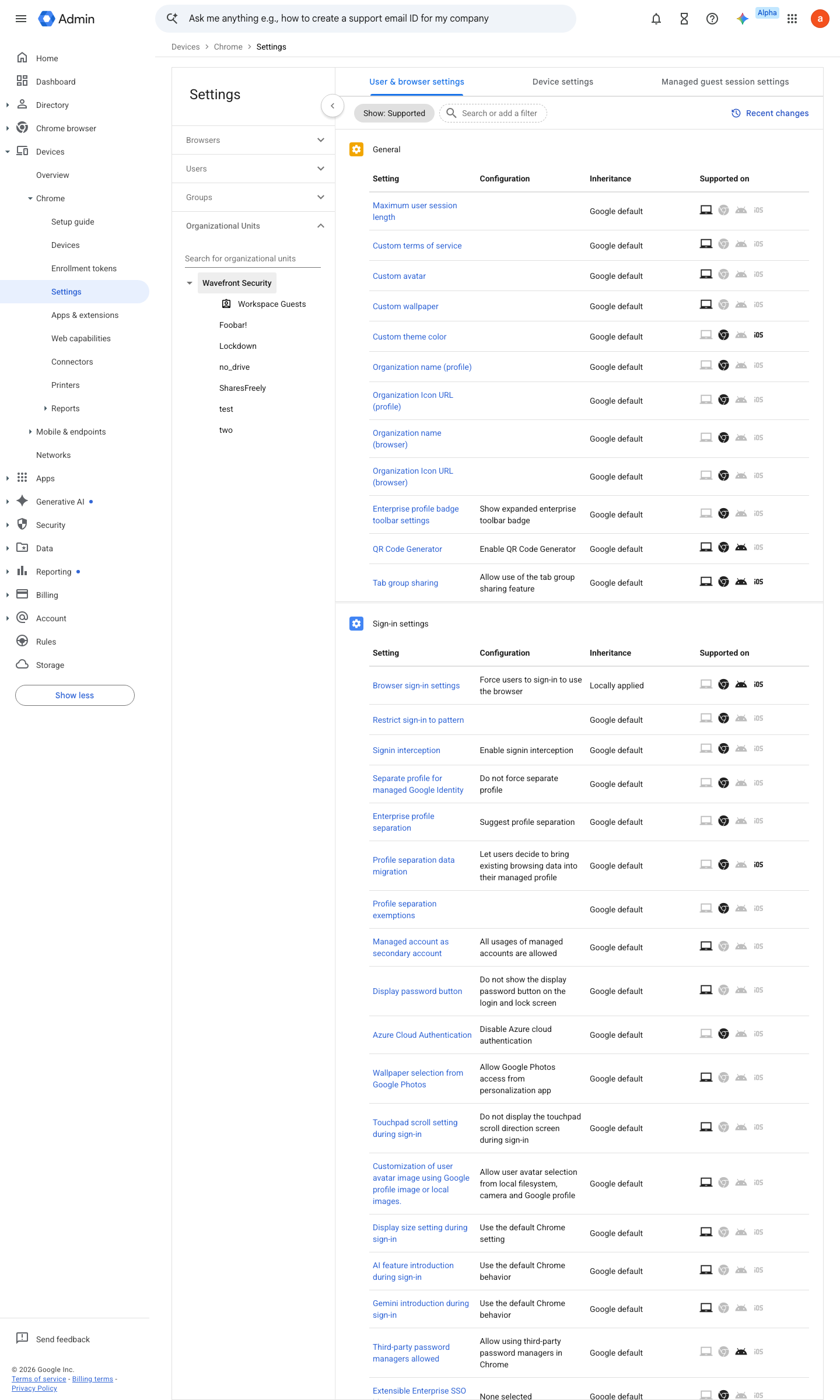
Screen 2 of 2: Security > Security center > Investigation tool (DBSC binding events — who is actually covered)
open ↗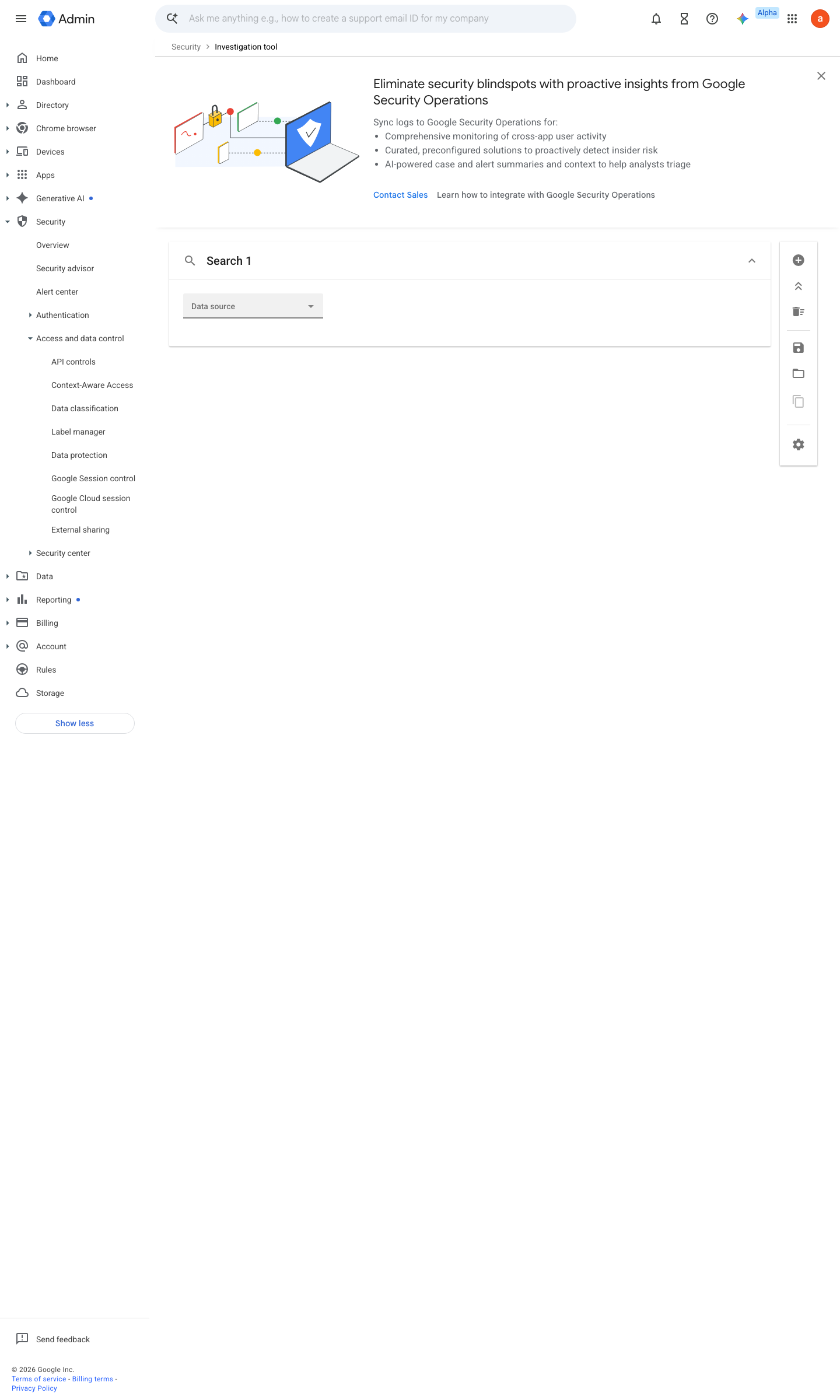
v0.5.2Preventedition All (Chrome Ent Core: free) policy #27 · #7 ↗